Exploring Data Asset Details
After creating and configuring a Data Asset, you can access its details screen to review metadata, monitor status, understand the data structure, and document how users should utilize the asset.
To Explore Data Asset Details
-
Navigate to Data Assets and click on Asset Name you want to view more details. The Data Asset details screen displays information in the following tabs:
-
Overview
-
Composition
-
Usage Guidance
-
Usage
-
-
Each tab provides specific information that helps users understand, manage, and utilize the Data Asset effectively.

Note:
On the Data Asset details screen, you can:
-
Generate AI suggested values for metadata fields of a data asset using the Generate Metadata using AI option. For more details, refer to Generating AI Metadata for Data Assets.
-
Run and execute a data asset pipeline using the Run option. For more details, refer to Running Data Assets.
-
Modify the asset configuration using the Edit Configuration option from the ellipsis. For more details, refer to Editing Data Assets.
-
Directly edit the asset details using the edit icon next to each field. You need to first unpublish and then edit it.
 Overview
The Overview tab displays high-level information about a Data Asset and serves as the primary source of information. This tab helps you understand the purpose, ownership, status, and operational details of the asset without examining the underlying data structure.
-
Data Asset Details - This section displays business and technical information about the Data Asset, including:
-
Asset Owner
-
Storage technology
-
Description
-
Purpose
-
Tags
-
SME Contact
This information helps users understand what the asset contains and who maintains it.
-
-
Origin and Processing - This section provides context about the source and preparation of the data, including:
-
Source summary
-
Intended use
-
Collection process
-
Processing step
You can review this information to understand where the data originates and how it is prepared before consumption.
-
-
Status - This section displays the current status of the Data Asset, including:
-
Sensitivity Classification
-
Last Run Status
-
Publish Status
-
Certification Status
These indicators help you quickly assess the governance and operational state of the asset.
-
Activity - This section displays lifecycle and audit-related information, including:
-
Created By
-
Created Date
-
Last Modified By
-
Last Modified Date
-
Usage Count
-
Last Accessed Date
This information helps you understand how frequently the asset is used and maintained.
-
-
Composition
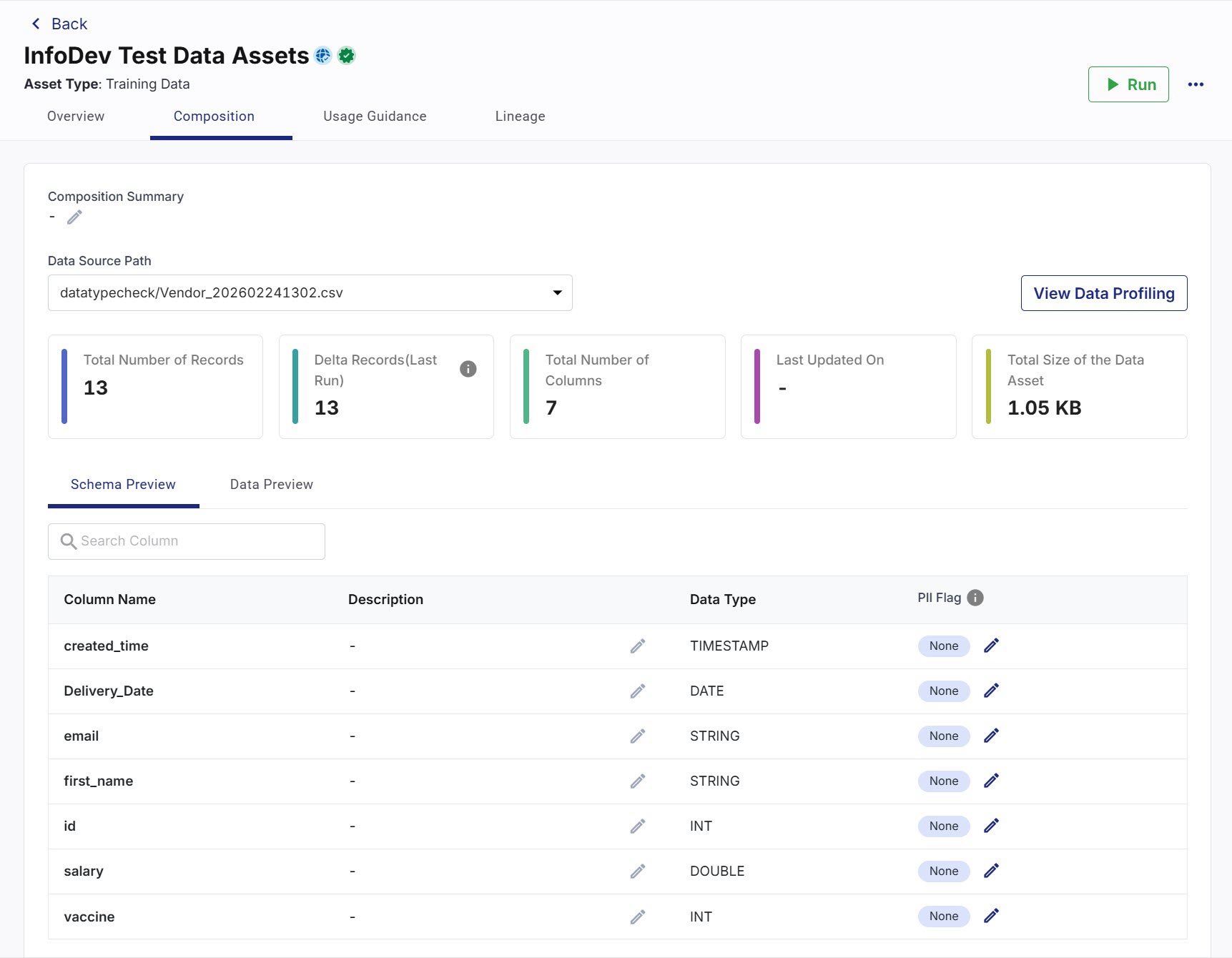
The Composition tab provides information about the structure and content of the Data Asset. This tab helps you understand:
-
Where the data resides
-
How much data the asset contains
-
The schema and column definitions
-
Data profiling information
-
Sample data available within the asset
-
Composition Summary - This field provides a high-level description of the dataset structure and contents. You can document important information about the dataset to help consumers understand the composition of the asset.
-
Data Source Path - This field displays the source file location associated with the Data Asset. This information provides visibility into the physical location of the data. Depending on the configured source, you can review information such as:
-
Source path
-
Files
-
Folders
-
Storage location
-
-
Dataset Metrics - This section displays key dataset statistics, including:
-
Total Number of Records
-
Delta Records (Last Run)
-
Total Number of Columns
-
Last Updated On
-
Total Size of the Data Asset
These metrics help you assess the scale and freshness of the dataset.
-
-
View Data Profiling - This option provides access to profiling insights generated for the Data Asset on the Data Profiler Results screen. These insights help you evaluate the suitability of the data for your intended use cases. Data profiling information helps you understand:
-
Data completeness
-
Distribution patterns
-
Uniqueness metrics
-
Column statistics
-
Data quality indicators
-
-
Schema Preview - This subtab displays the structure of the dataset. This information helps you understand the format and meaning of the data before using it. For each column, you can view:
-
Column Name
-
Description
-
Data type
-
PII Flag
-
Data Preview - This subtab displays sample records from the dataset and provides a quick way to review data without accessing the underlying source system. You can review sample data to:
-
Validate data quality
-
Verify column values
-
Understand data formats
-
Identify potential issues
-
-
Usage Guidance
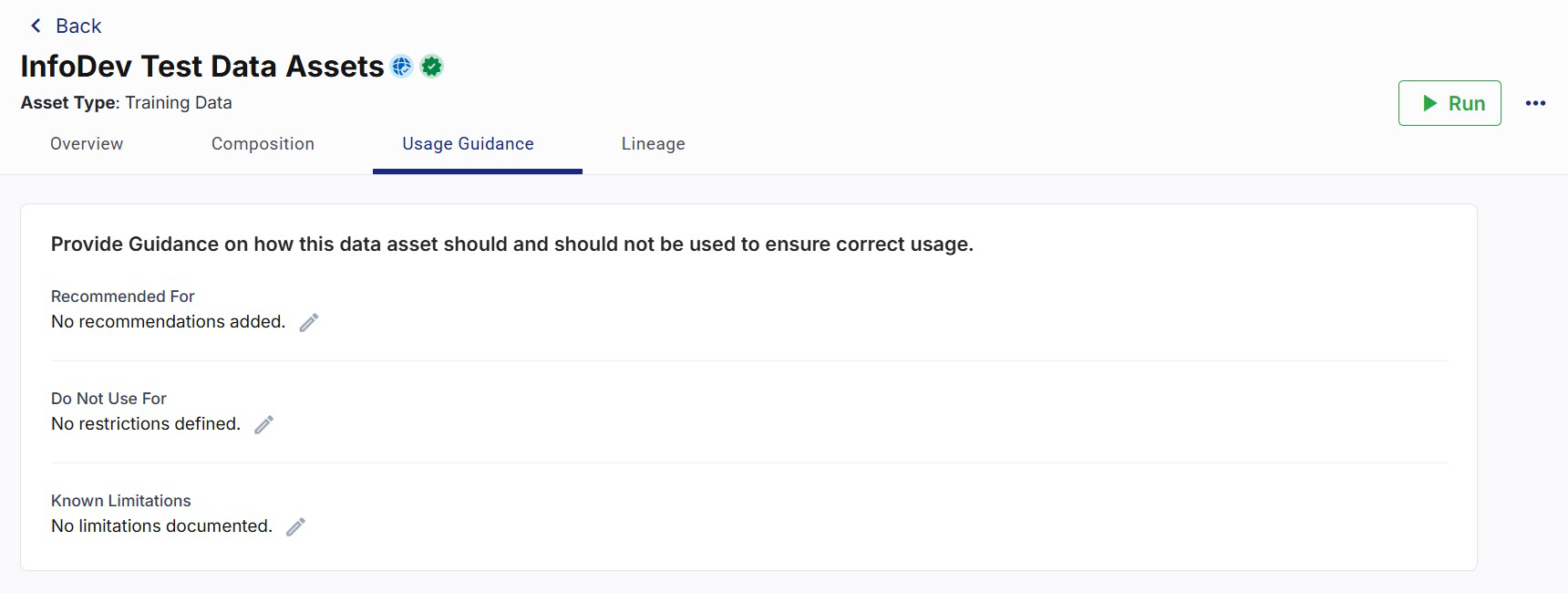
The Usage Guidance tab provides recommendations and documentation that help you utilize the Data Asset correctly. This information improves data adoption and reduces the risk of misuse.
Data providers can document both recommended and restricted usage scenarios to help data consumers make informed decisions.
-
Recommended For - This section describes appropriate scenarios for using the Data Asset. You can review this guidance to determine whether the asset meets your requirements. Examples include:
-
Business reporting
-
Analytics
-
Machine learning
-
Dashboard development
-
Data exploration
-
-
Do Not Use For - This section identifies scenarios where users should avoid using the Data Asset. This guidance helps prevent incorrect interpretation or misuse of the data. The recommendations vary depending on the characteristics of the dataset. Examples include:
-
Real-time decision making
-
Regulatory reporting
-
Operational workflows
-
Historical trend analysis
-
-
Known Limitations - This section documents any constraints, assumptions, or concerns associated with the data asset. Examples include:
-
Missing values
-
Delayed updates
-
Incomplete historical data
-
Data quality considerations
-
Source system limitations
-
Note:
You must review these limitations before using the asset for business-critical activities.
Lineage
The Lineage tab helps you understand the origin and evolution of a Data Asset by defining its upstream sources. Lineage information improves data transparency and helps data consumers understand where the data originates, how it is derived, and what sources contribute to the asset. This tab displays all declared upstream sources associated with the Data Asset.
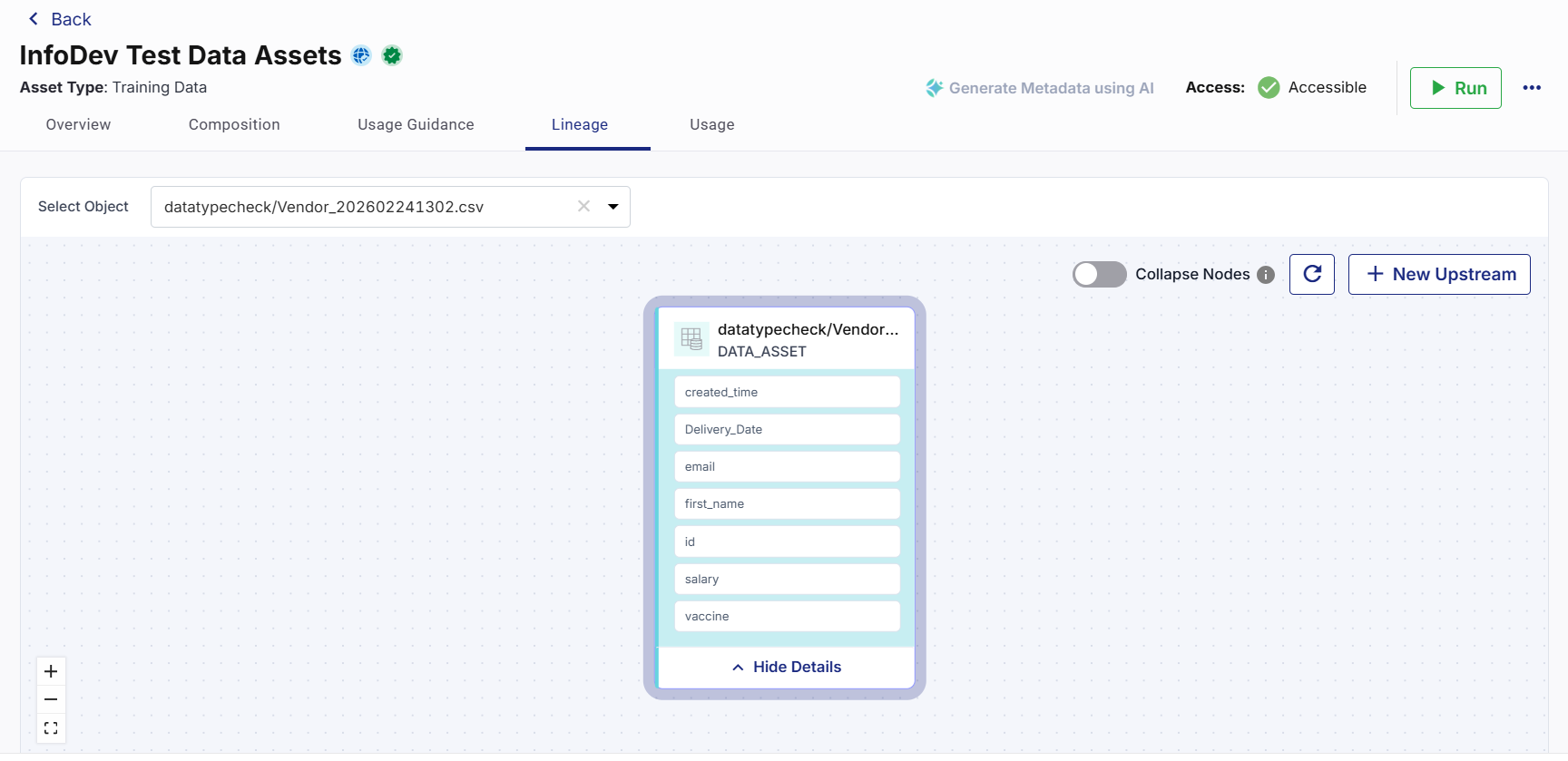
The lineage information helps you:
-
Identify the origin of a Data Asset.
-
Trace upstream dependencies.
-
Understand data source relationships.
-
Improve transparency and governance.
-
Support auditing and compliance activities.
-
Assess the impact of changes before modifying a Data Asset.
By maintaining accurate lineage information, data providers help consumers understand how the Data Asset is created and how it relates to external sources and other assets across the platform.
Adding Upstream Nodes
You can define one or more upstream nodes for a Data Asset.
To add an upstream node
-
Navigate to the Lineage tab.
-
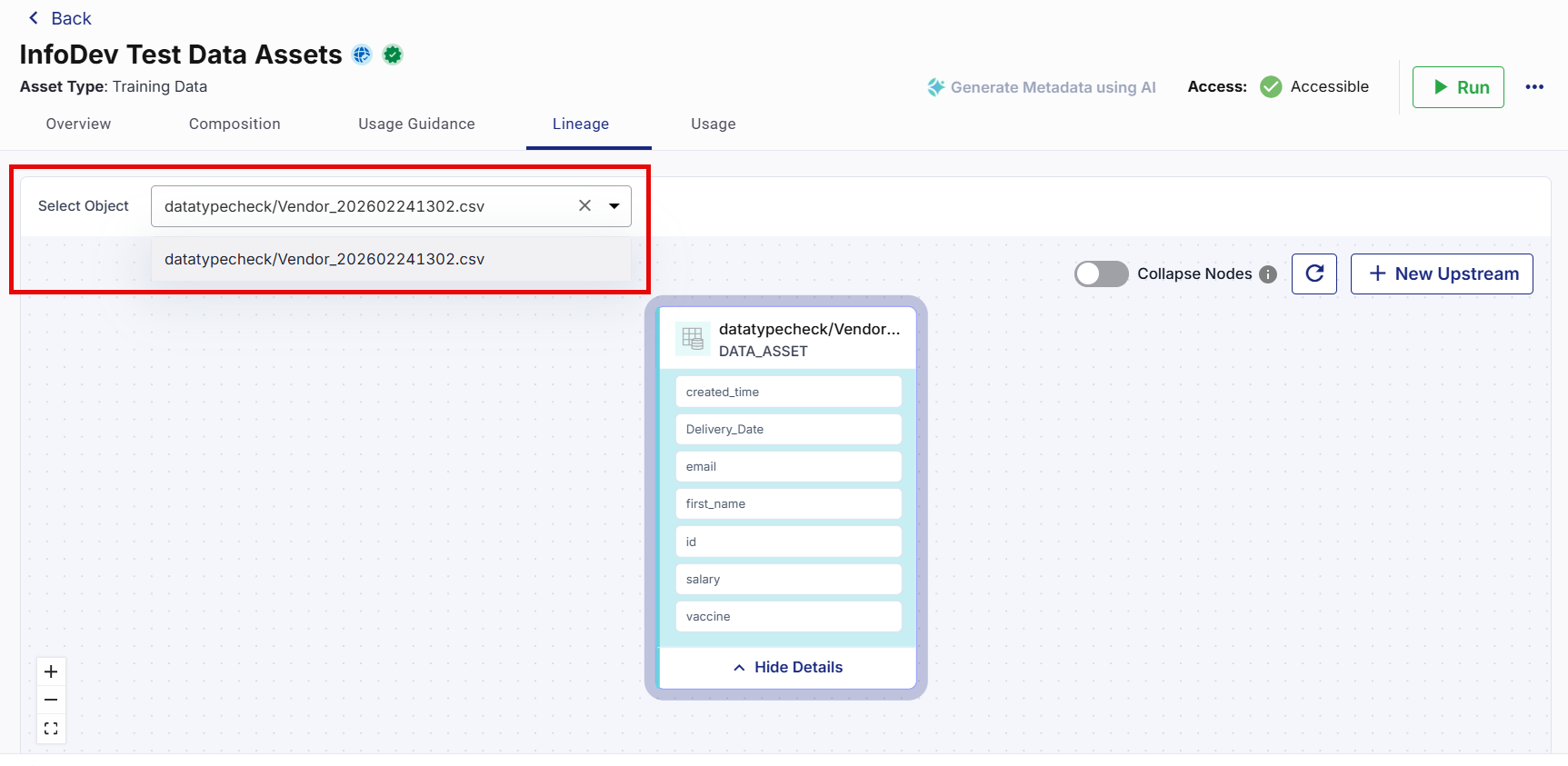
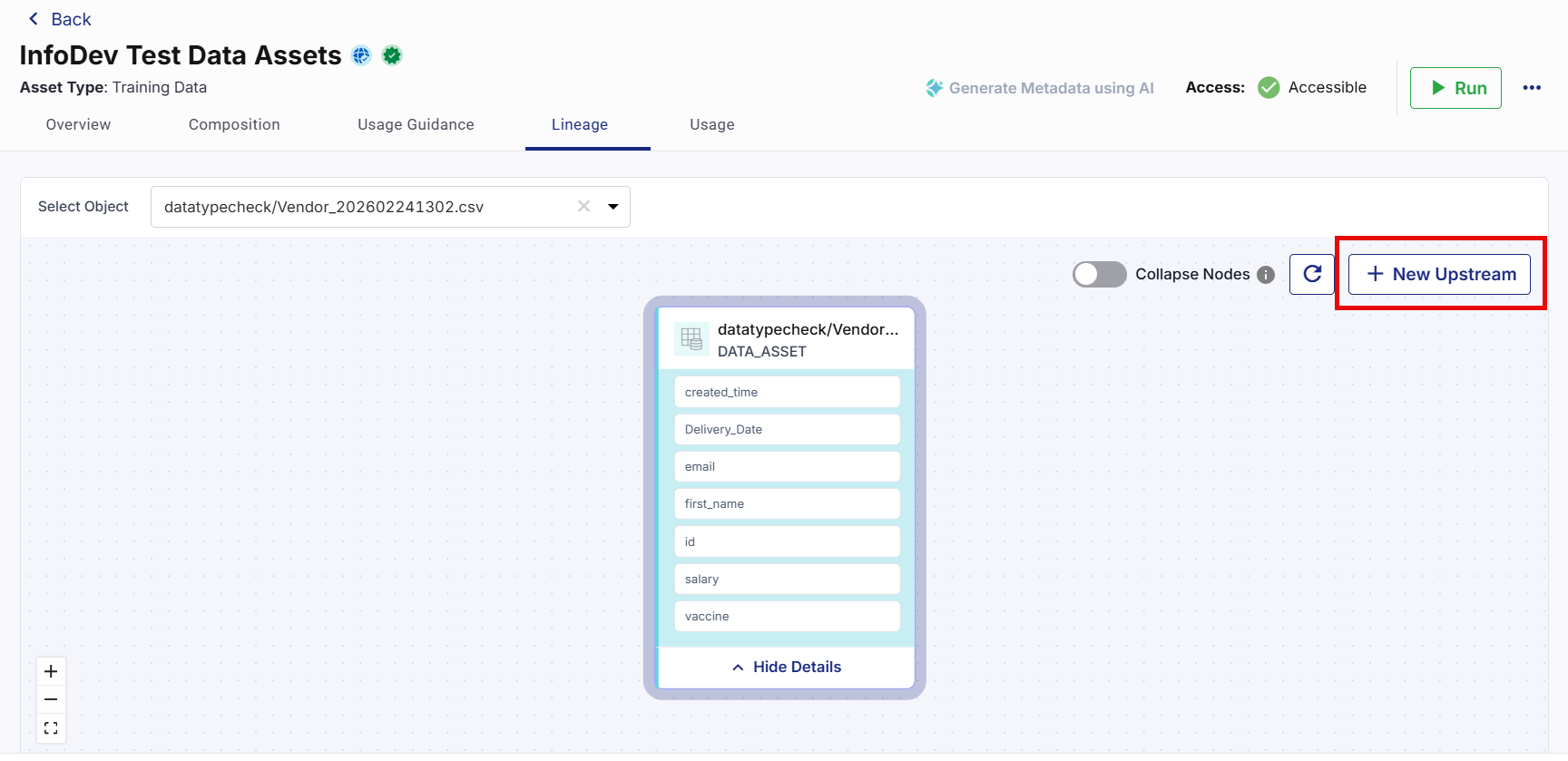
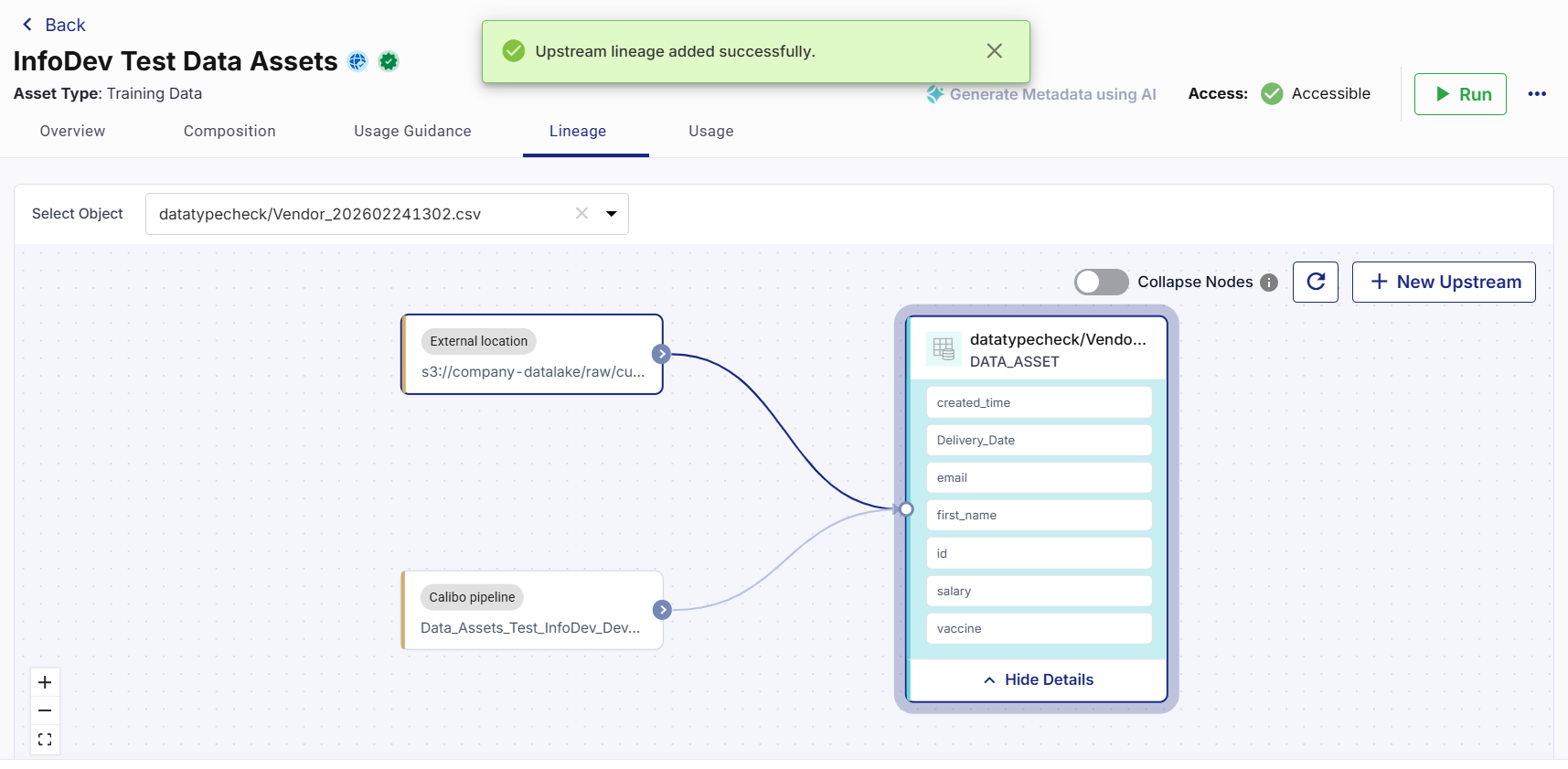
From the Select Object dropdown, select the required object. The corresponding data asset details display in the centre of the lineage view.
-
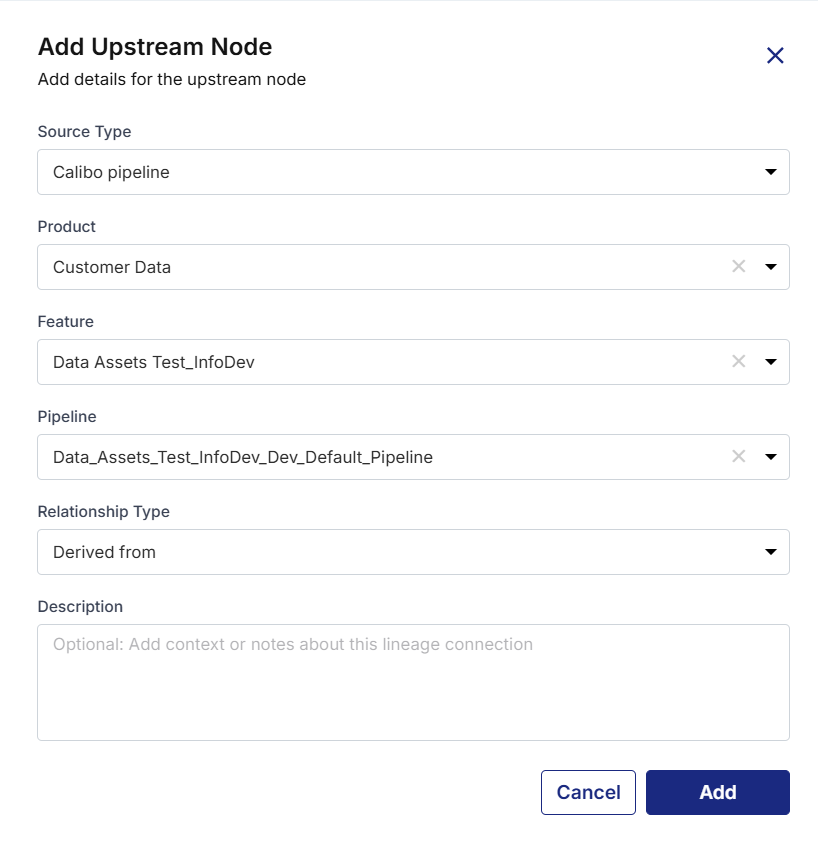
On the top right corner of the lineage view, click + New Upstream. The Add Upstream Node side drawer opens.
-
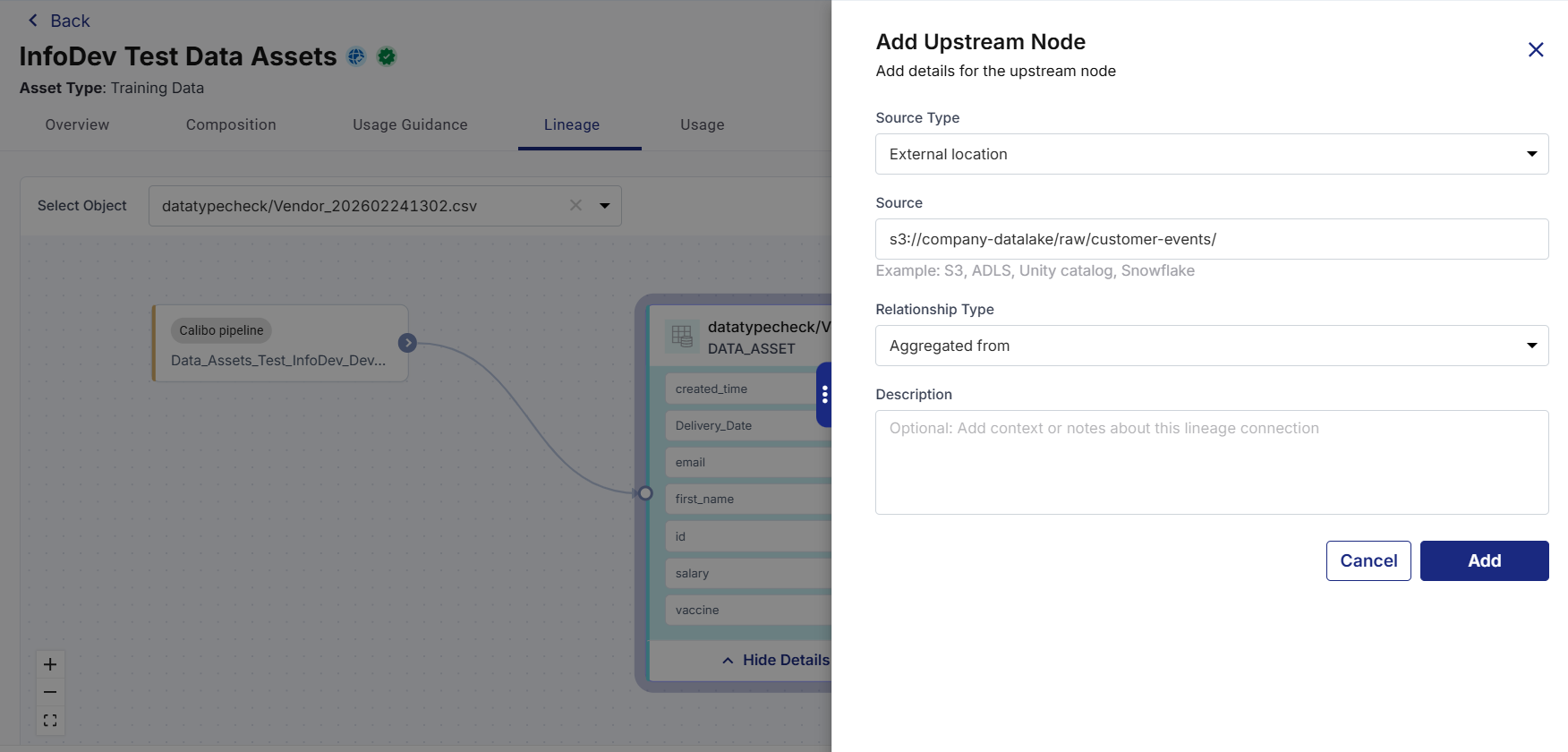
From the Source Type dropdown, select the type of upstream source from the dropdown. Available options include:
-
Calibo Pipeline
-
External Location
-
-
Depending on the selected source type, provide the following details:
-
For Calibo Pipeline, select the required Product, Feature, Pipeline from the respective dropdowns.
-
For External Location, provide the external source location in the Source textbox.
-
-
From the Relationship Type dropdown, select the relationship between the Data Asset and the selected source. The relationship type helps users understand how the source contributes to the Data Asset.
Available relationship types include:
-
Derived From
-
Aggregated From
-
Filtered From
-
Copied From
-
Joined From
-
Other
-
-
In the Description textbox, provide additional information about the lineage connection. This field is optional.
-
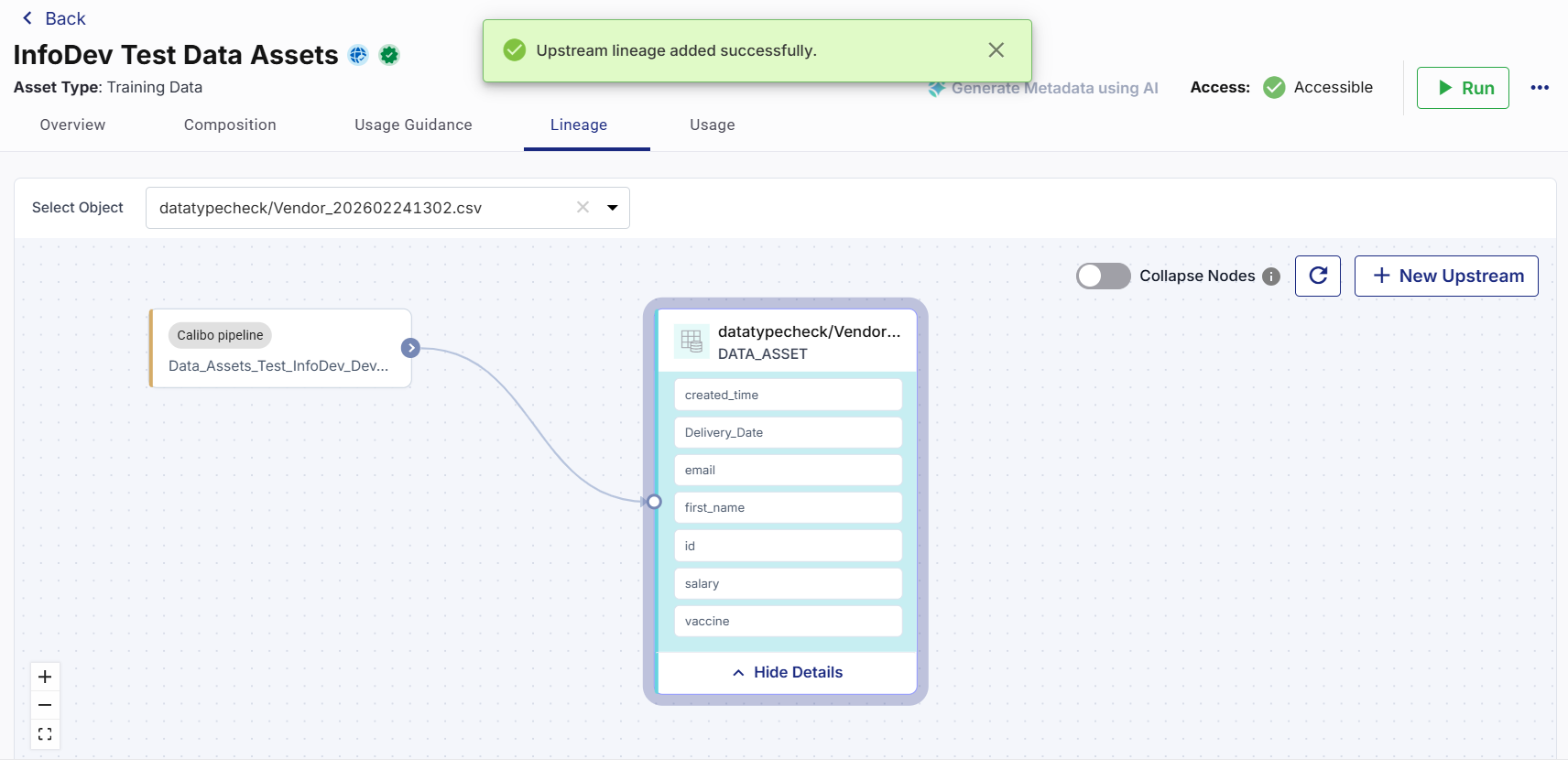
Click Add. A confirmation message displays on the top and the upstream node connected to Data Asset appears in the lineage view.
-
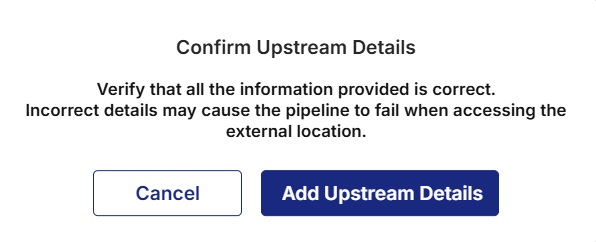
When you add external location as source type, a confirmation dialog appears.
-
Click Add Upstream Details. A confirmation message displays on the top and the external upstream node connected to Data Asset appears in the lineage view.
-
Managing Upstream Nodes
A Data Asset can contain multiple upstream nodes. The Lineage tab displays all configured nodes in the lineage view.
Viewing Upstream Details
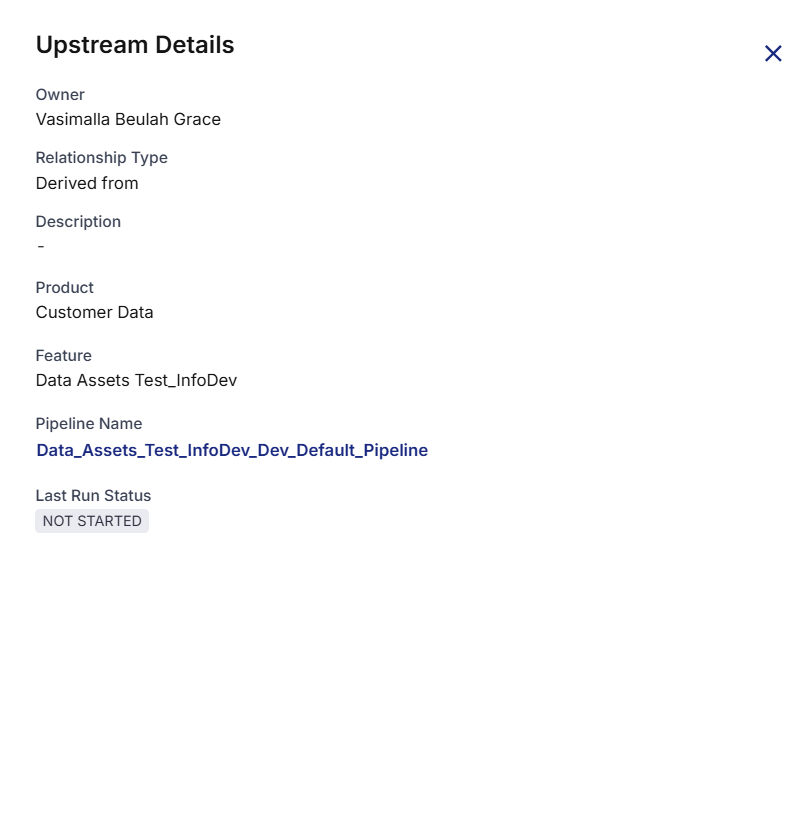
The Lineage tab displays all upstream nodes associated with the Data Asset. Each node in the lineage view represents a source that contributes to the Data Asset.
To view upstream details
-
Navigate to the Lineage tab.
-
In the lineage view, locate and click on the upstream node you want to view. The Upstream Details side drawer opens and displays the corresponding upstream node details.
Viewing Data Asset Details
To view data asset details
-
Navigate to the Lineage tab.
-
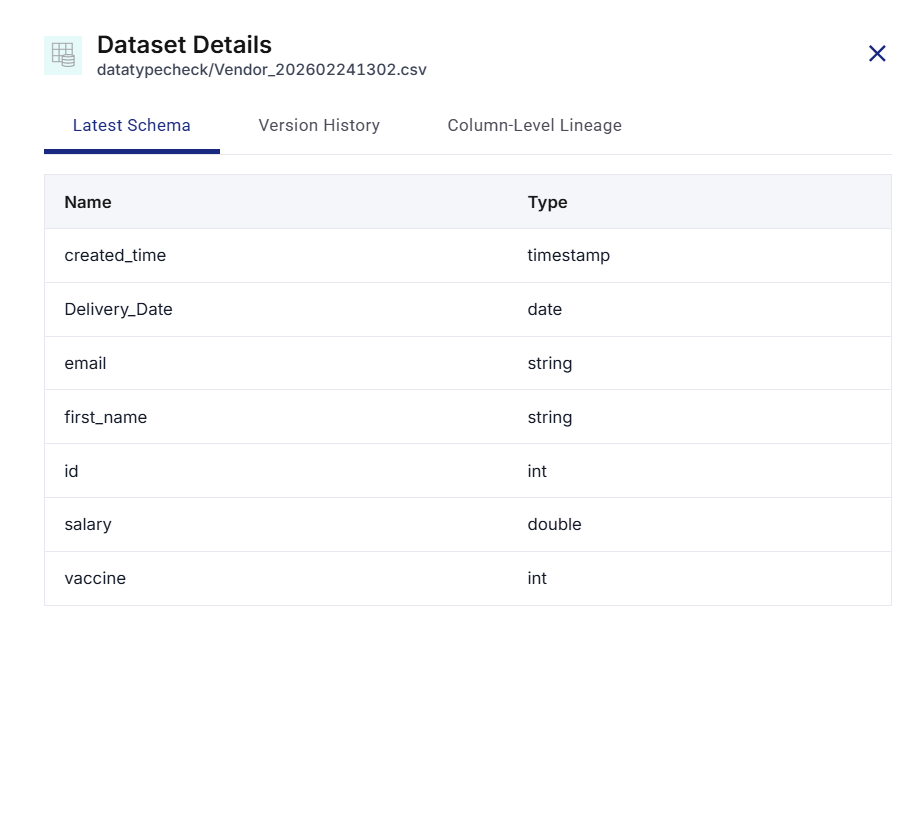
In the lineage view, click on the data asset. The Dataset Details side drawer opens and displays the corresponding data asset details in various tabs.
-
Click the Latest Schema, Version History, or Column-Level Lineage tabs to view the respective details as needed.
Editing an Upstream Node
To edit an upstream node
-
Navigate to the Lineage tab.
-
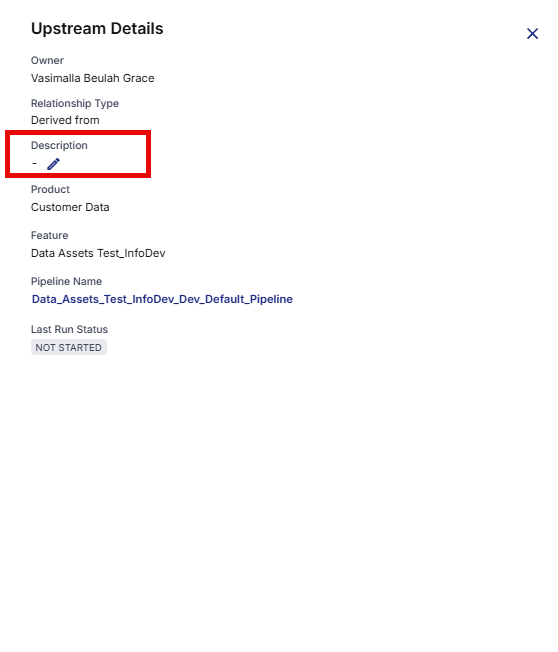
In the lineage view, locate and click on the upstream node you want to modify. The Upstream Details side drawer opens.
-
Click the Edit pencil icon next to the required field.
-
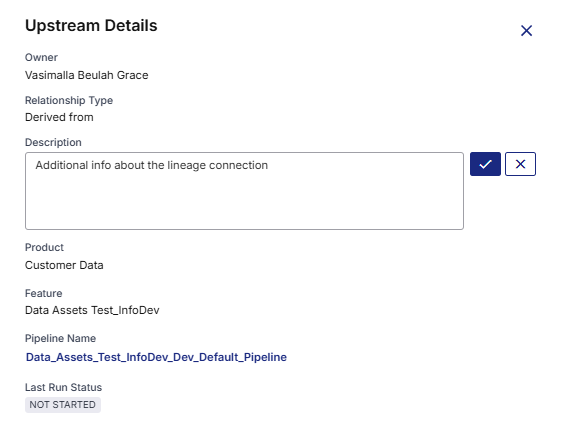
Update the required information.
-
Click the checkmark (✔) icon. The updated information is displayed in the lineage view.
Deleting an Upstream Node
To delete an upstream node
-
Navigate to the Lineage tab.
-
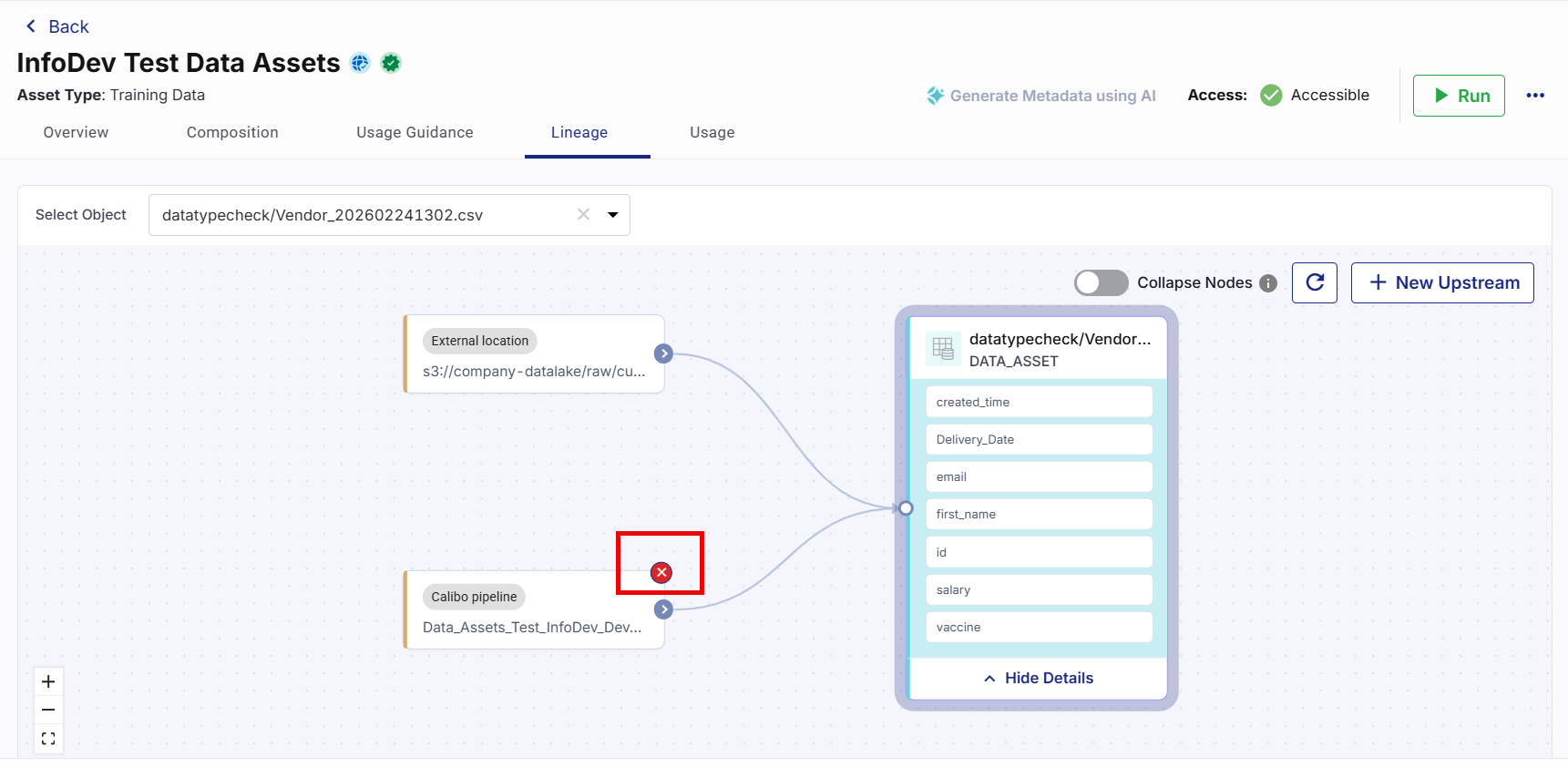
In the lineage view, locate and hover over the upstream node you want to remove.
-
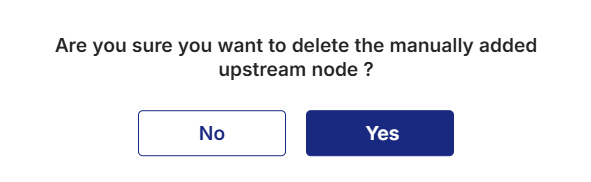
On the top right corner, click the cross mark (❌) icon. A confirmation dialog appears.
-
Click Yes to confirm the deletion. The selected upstream node is removed from the lineage view.
Navigating the Lineage View
The Lineage tab displays upstream source relationships in an interactive lineage diagram. This diagram helps you visualize how the Data Asset relates to other assets and external sources.
You can use the available options to navigate and review lineage information more effectively.
Viewing or Hiding Data Asset Details
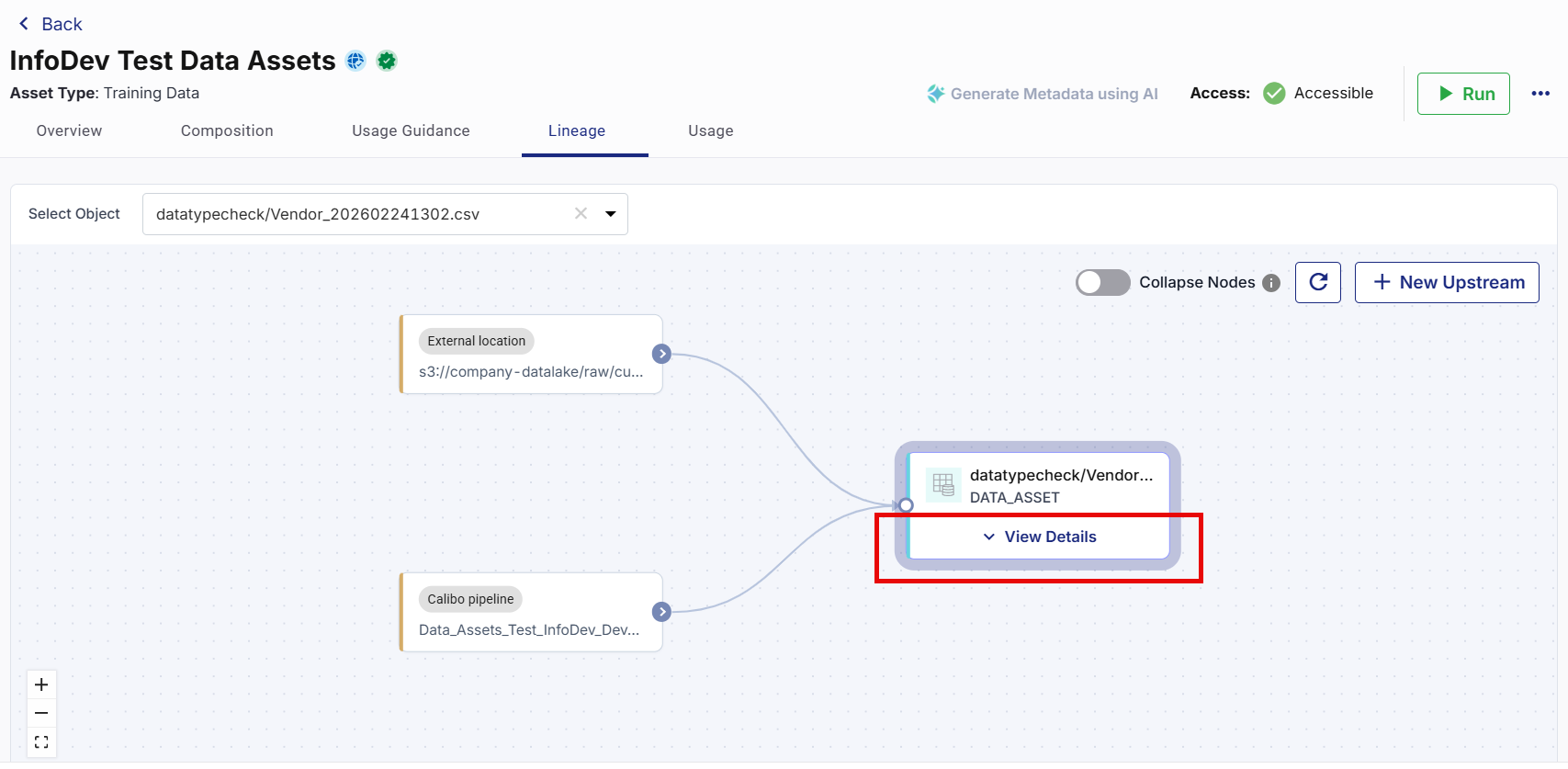
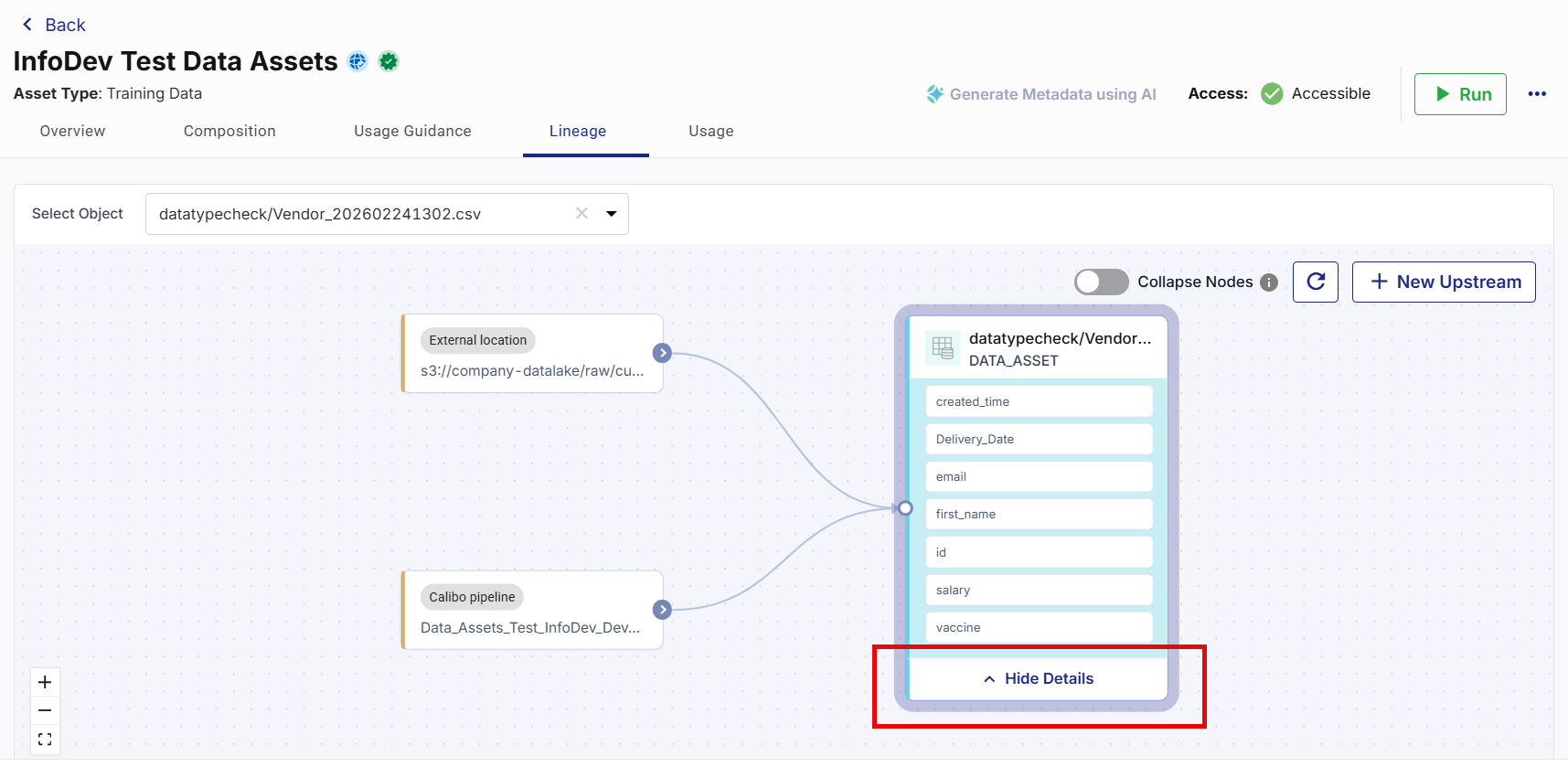
In the lineage view, you can do one of the following:
-
Click View Details to display the data asset details in an expanded view.
-
Click Hide Details to hide the data asset details.
Refreshing the Lineage View
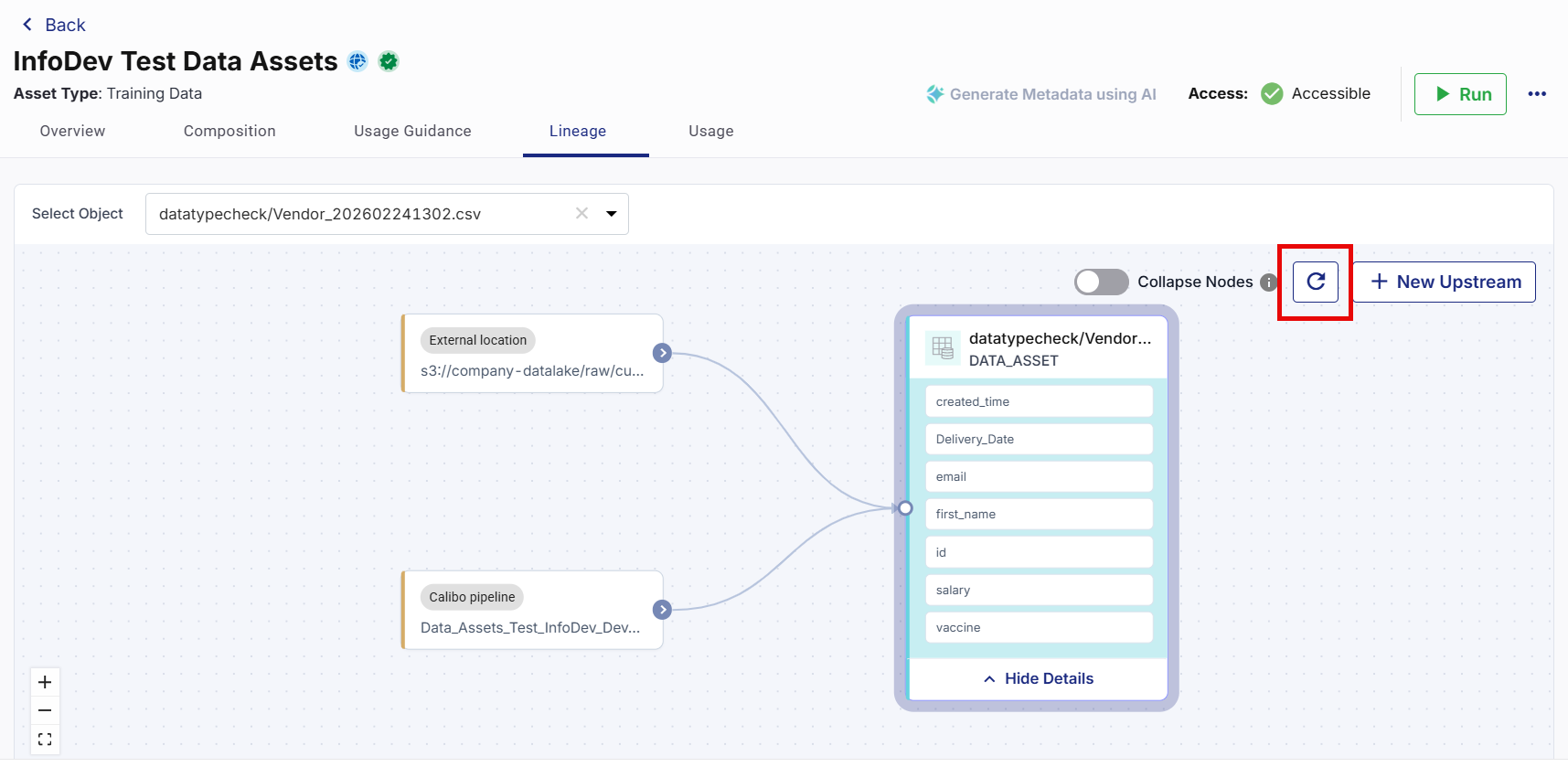
Use the Refresh icon to reload the lineage information and display the latest available source relationships.
Collapsing Source Nodes
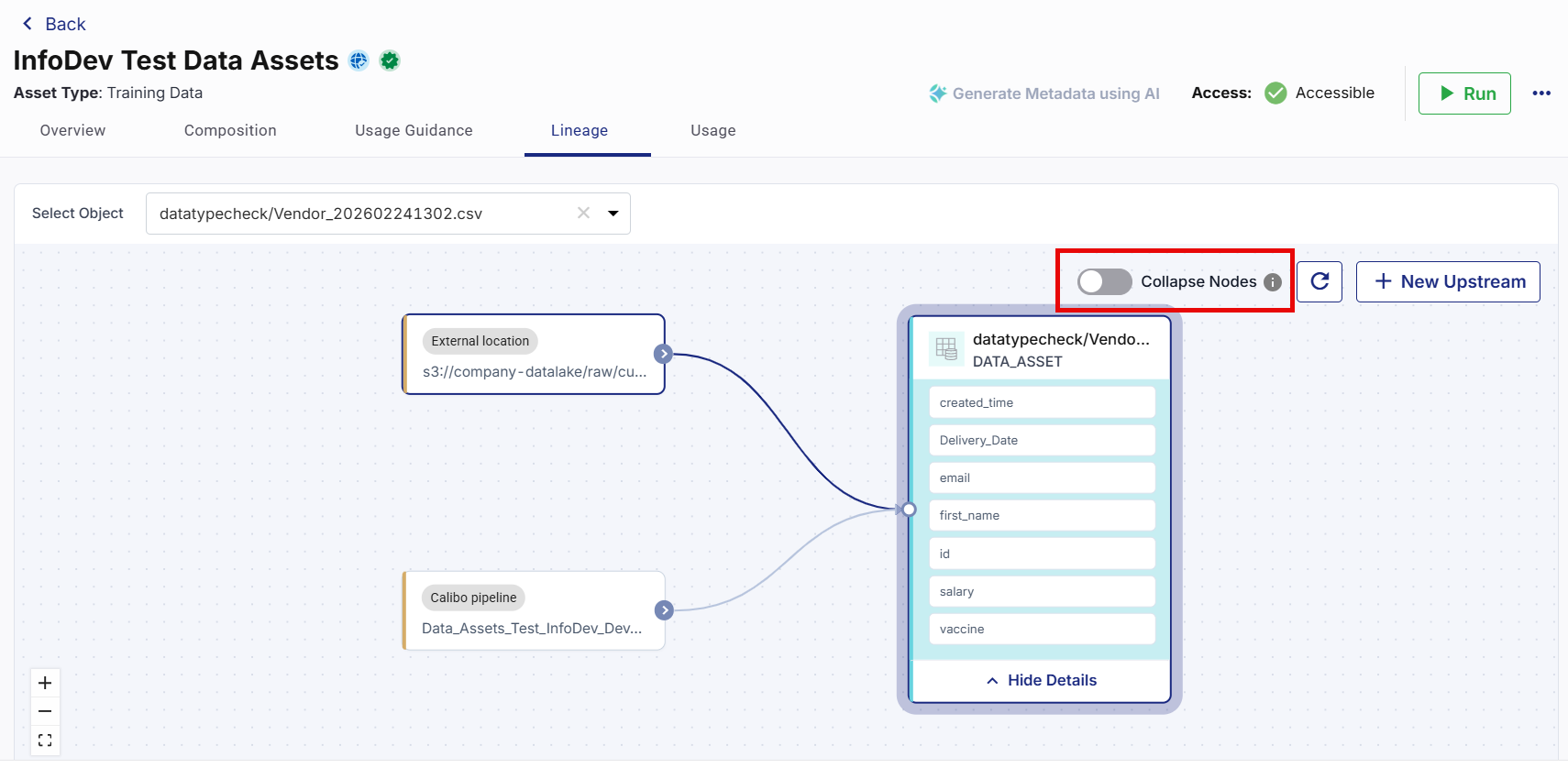
Enable the Collapse Nodes option to hide the node structure and simplify the lineage view to focus on the overall data flow.
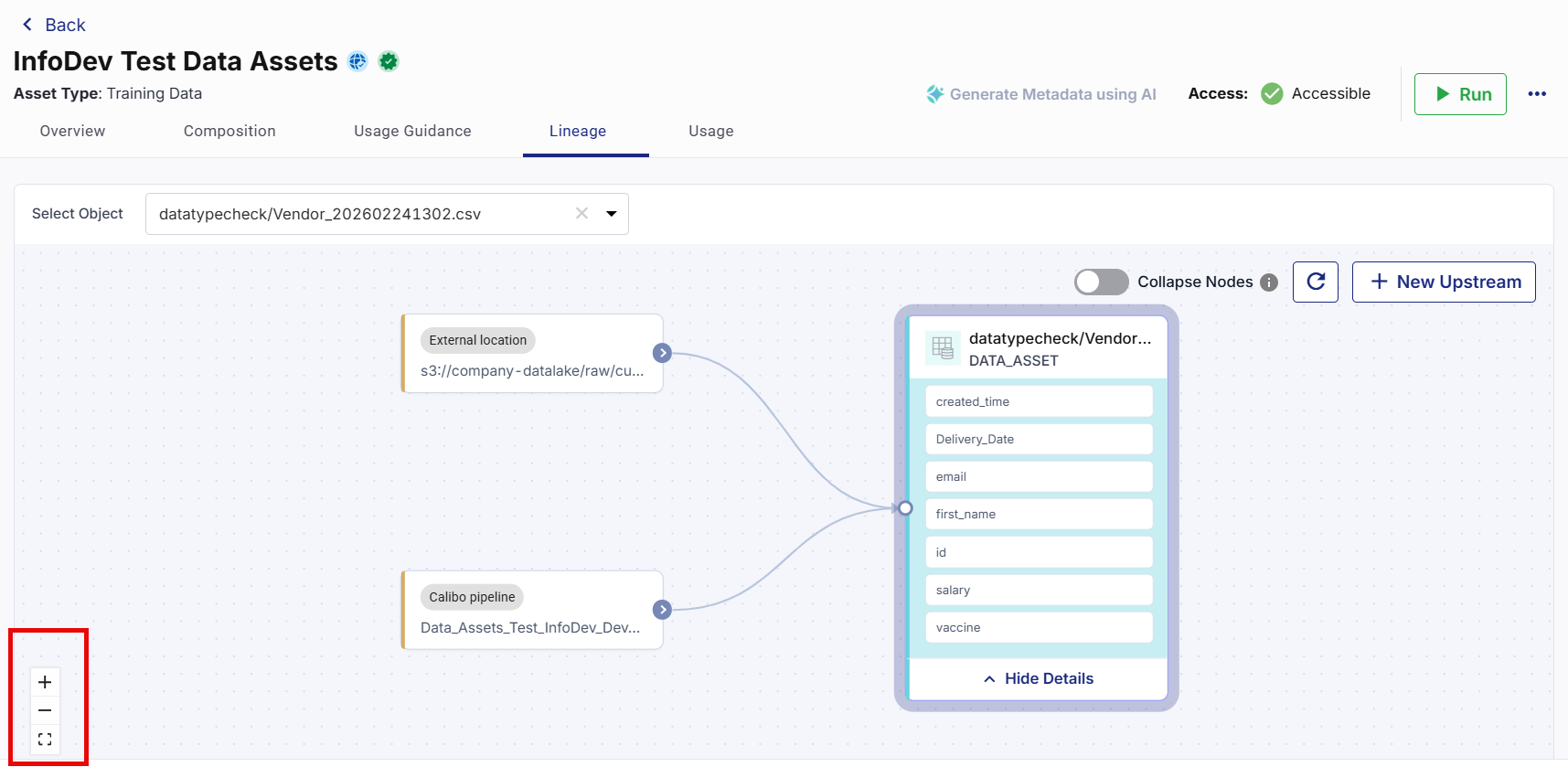
Zooming In and Out of Lineage View
On the bottom left corner of the lineage view, use the zoom options to adjust the size of the lineage diagram.
-
Click the Zoom In (+) icon to enlarge the lineage diagram.
-
Click the Zoom Out (-) icon to reduce the size of the lineage diagram.
Moving the Lineage Diagram
You can move the lineage diagram to review different areas of the graph.
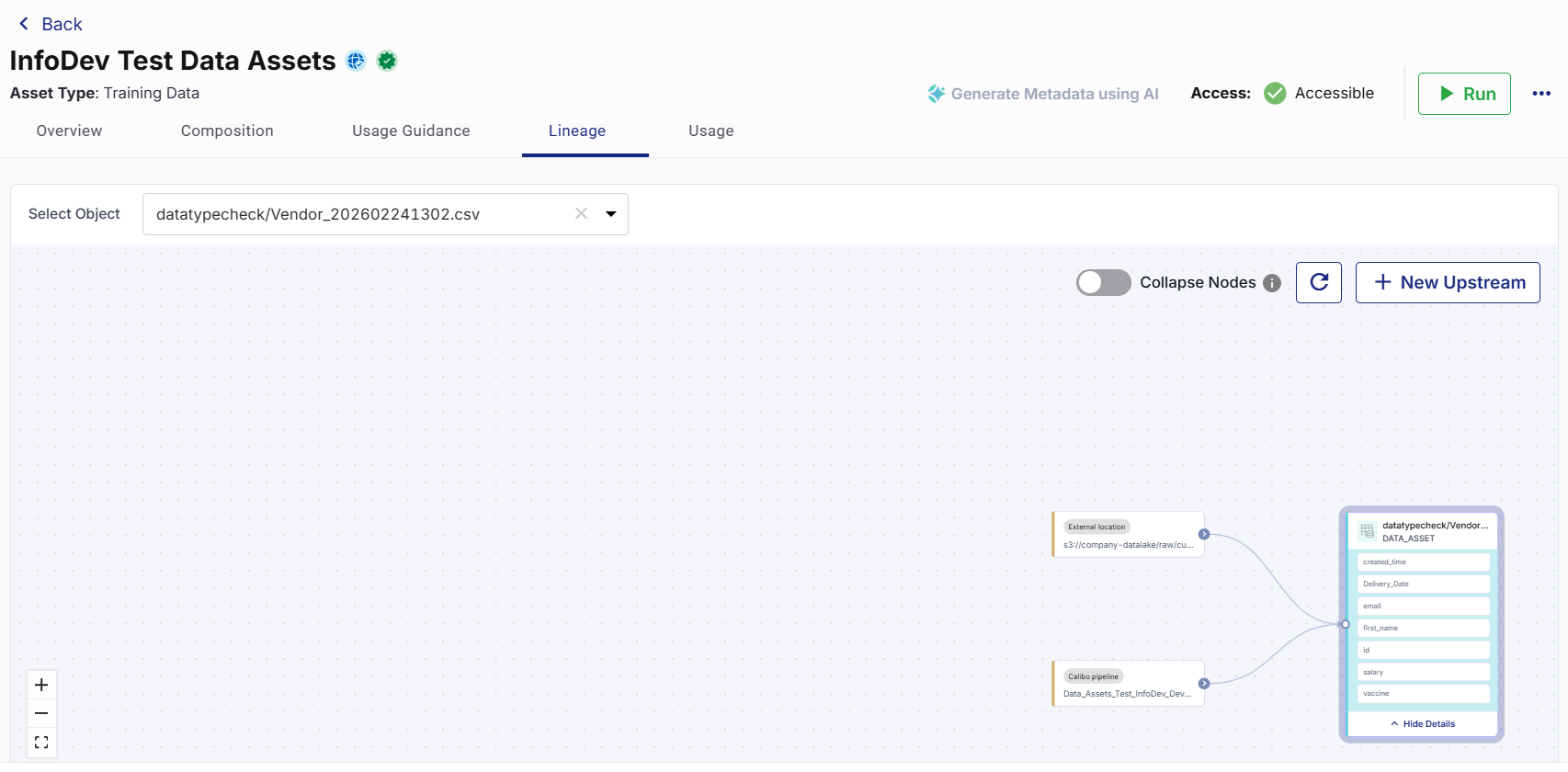
To move the lineage diagram
-
Click anywhere inside the lineage view.
-
Drag the diagram in the required direction.
The lineage diagram moves accordingly and allows you to view hidden or distant nodes.
Note:
You can click and drag anywhere within the area to navigate larger lineage structures.
Usage
The Usage tab provides visibility into how a Data Asset is consumed across the platform. It helps you understand where the asset is used, how frequently it is accessed, and which pipelines depend on it.
The usage information helps you:
-
Measure Data Asset adoption.
-
Identify downstream pipeline dependencies.
-
Understand asset utilization patterns.
-
Assess the impact of proposed changes.
-
Support governance and lifecycle management activities.
Review the Usage tab before editing, unpublishing, decertifying, or deleting a Data Asset to understand the potential impact on dependent pipelines.
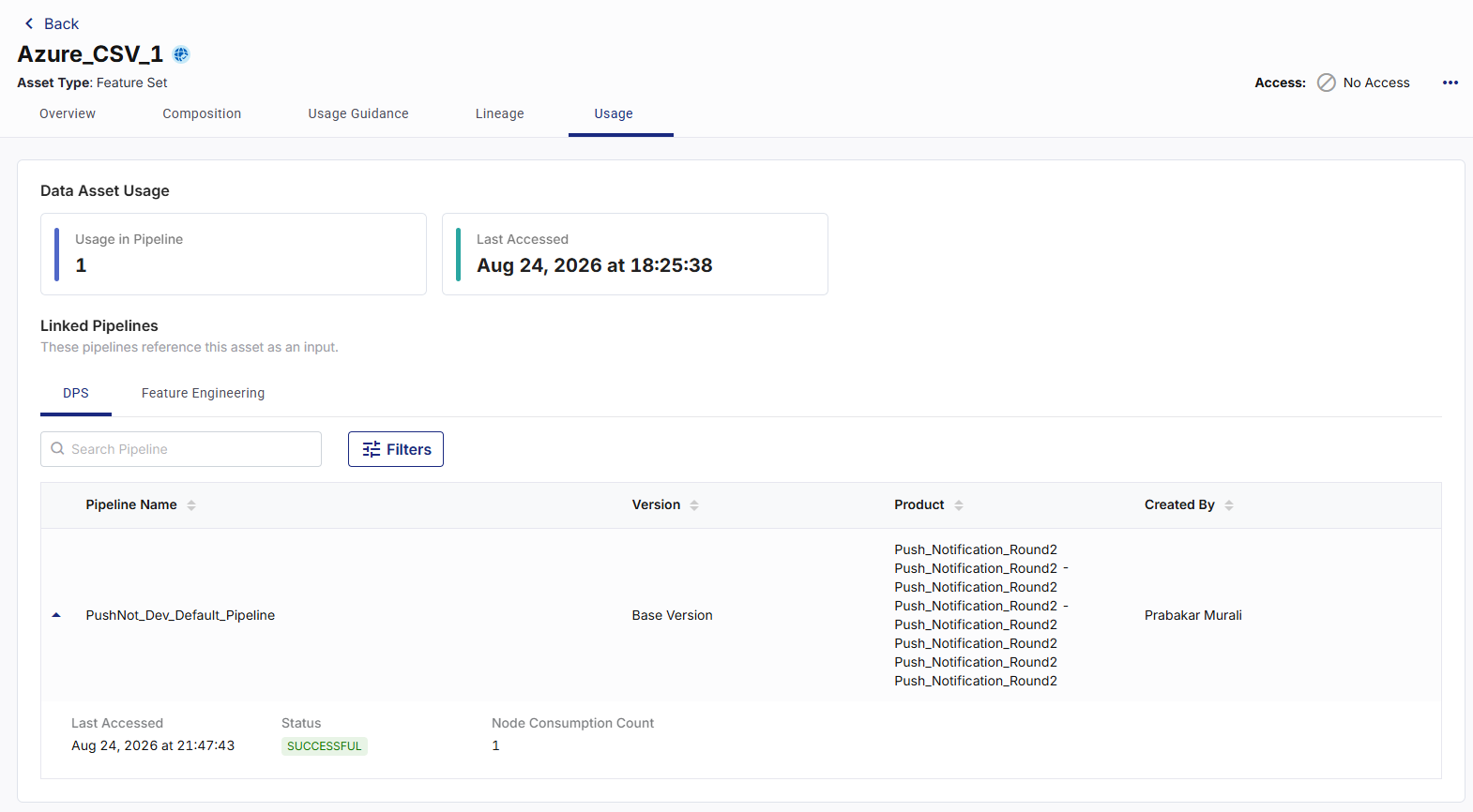
The usage tab displays the following information:
Data Asset Usage: This section provides a summary of asset utilization, including:
-
Usage in Pipeline – Displays the total number of pipelines that currently use the Data Asset.
-
Last Accessed – Displays the most recent date and time when a pipeline accessed the Data Asset.
These metrics help you understand how actively the Data Asset is used across the platform.
Linked Pipelines: This section displays the pipelines that reference the Data Asset as an input.
Linked pipelines are grouped by:
-
DPS
-
Feature Engineering
Select the appropriate tab to view the pipelines associated with that system.
For each linked pipeline, the following information is displayed:
-
Pipeline Name – Name of the pipeline that uses the Data Asset.
-
Version – Version of the pipeline.
-
Product – Product associated with the pipeline.
-
Created By – User who created the pipeline.
This information helps you identify where the Data Asset is used and who maintains the dependent pipelines.
Click the Expand icon of each pipeline to view additional usage information. The expanded view displays:
• Last Accessed – Most recent date and time when the pipeline accessed the Data Asset.
• Status – Latest execution status of the pipeline.
• Node Consumption Count – Number of nodes within the pipeline that reference the Data Asset.
Note:
The Usage in Pipeline count represents the number of pipelines that use the Data Asset. The Node Consumption Count represents the number of individual nodes within a specific pipeline that consume the Data Asset. A pipeline is counted once in the usage metric, regardless of the number of consuming nodes within that pipeline.
Searching Linked Pipelines
You can search for a specific pipeline using the Search Pipeline box.
To search linked pipelines
-
Navigate to the Usage tab.
-
Enter a pipeline name in the Search Pipeline box.
-
Review the matching results.
The search results display pipelines that match the entered text.
Filtering Linked Pipelines
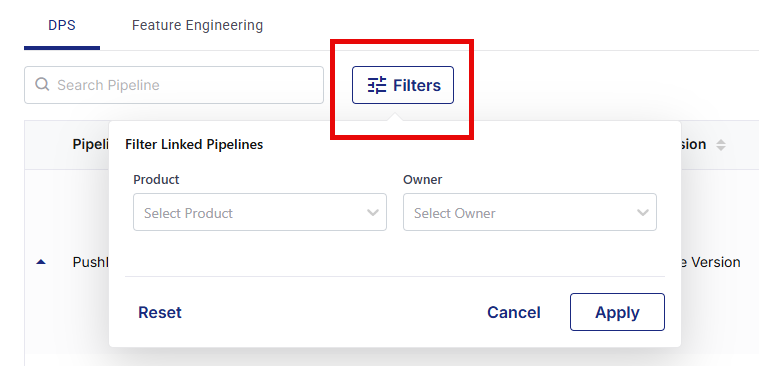
You can filter linked pipelines to locate specific usage records.
To filter linked pipelines
-
Navigate to the Usage tab.
-
Click Filters beside the Search Pipeline box.
-
Select one or more filter criteria as required:
-
Product
-
Owner
-
-
Click Apply.
-
The list updates to display matching pipeline results.
Note:
Click Reset to remove all applied filters and display all linked pipelines.
|
What's next?Editing Data Assets |